BotViewer Dashboard (2025 Guide): Features, Start/Stop, Safety & Support
The BotViewer dashboard is your control center for safe, natural-looking visibility boosts: start/stop controls, manual activation, and tracking in one place. In this guide, we’ll show how to configure packages, schedule usage, read analytics, and keep everything no risk, smart usage—with 24/7 support when you need it. ✅
📑 Table of Contents
- Who This Guide Is For
- Sign In & First Look
- Start/Stop & Manual Activation
- Scheduling & Natural Pacing
- Analytics & What to Track
- Safety, Policy Awareness & Best Practices
- Billing, Invoices & Support
- Comparison Table: Dashboard vs. Auto-Start
- 💡 Pro Tip
- 🛒 Grow Safely with BotViewer
- FAQs
- Final Word
Who This Guide Is For
This article is designed for Twitch, Kick, YouTube, and TikTok streamers—beginners pushing to Affiliate/Partner and creators who want controllable, brand-safe visibility. We keep things practical: easy setup, realistic pacing, and clear engagement goals.
Sign In & First Look
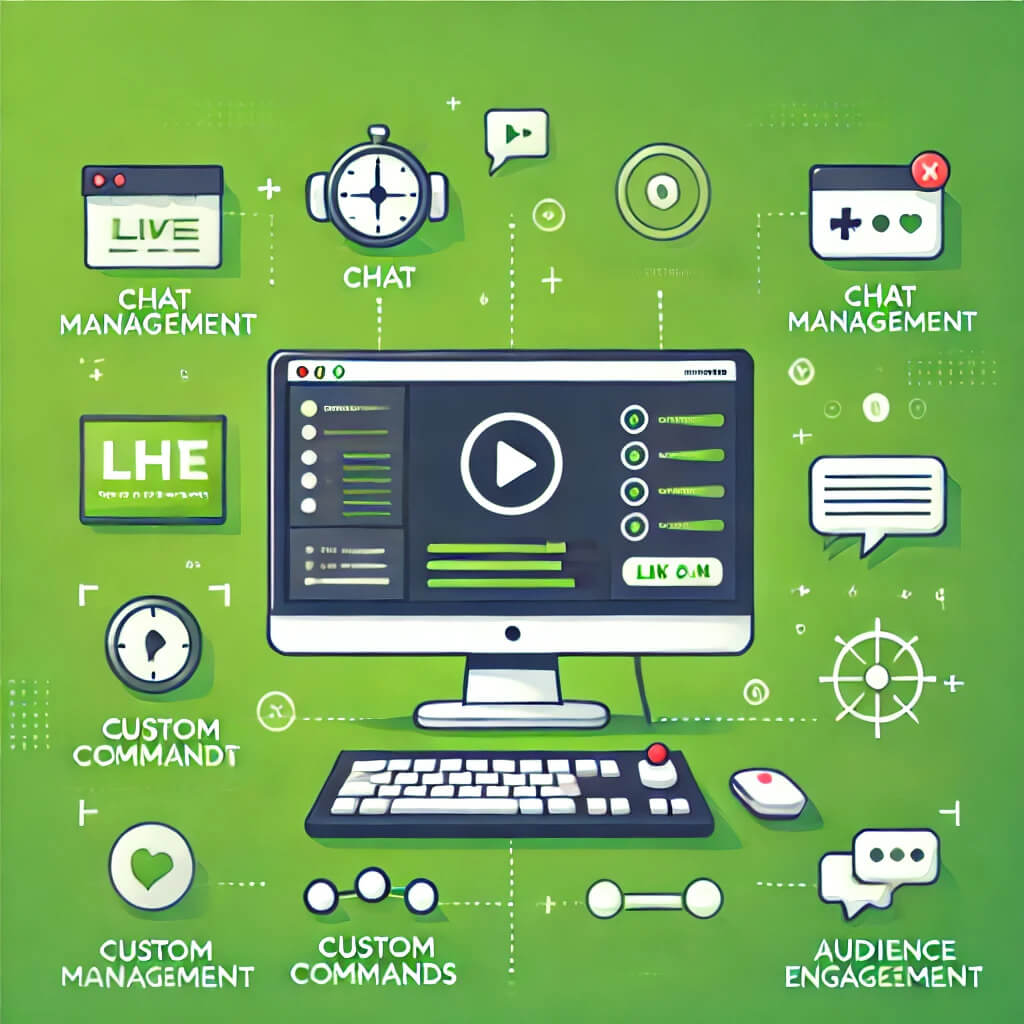
Log in to the BotViewer dashboard and you’ll land on a clean control panel with package status, quick actions (start/stop), and shortcuts to billing and support. From here you can activate a package only when you actually need it—like a tournament, collab, or new time slot. :contentReference[oaicite:1]{index=1}
Start/Stop & Manual Activation
The dashboard’s biggest win is manual activation with start/stop—instead of packages auto-starting, you choose the exact window to run. Therefore, you can test new formats without inflating numbers during off-hours. This level of control was highlighted at launch and remains a core feature. :contentReference[oaicite:2]{index=2}
Scheduling & Natural Pacing
Use light, realistic pacing that mirrors organic traffic (ramp up → steady → ramp down). Schedule boosts only when your stream has content peaks (boss fights, finals, co-streams). In addition, align timing with your community’s active hours and your Go Live notifications on the platform’s own dashboard. For Twitch-specific scheduling and management, the Creator Dashboard is your home base. :contentReference[oaicite:3]{index=3}
Analytics & What to Track
Track outcomes that matter: average watch time, chat velocity, CTR from panels/commands, and returning viewers. Compare “with dashboard boost” vs “without” sessions weekly. Therefore, you’ll know what to keep, stop, or tweak.
Safety, Policy Awareness & Best Practices
We always emphasize no risk, smart usage. Respect each platform’s rules around artificial metrics; keep your on-stream behavior brand-safe (DMCA, content labels, moderation). For example, Twitch’s official materials encourage creators to manage streams via the Creator Dashboard and focus on healthy discovery features like Featured Clips and accurate tagging—not spammy behaviors. :contentReference[oaicite:4]{index=4}
Billing, Invoices & Support
Access invoices from the dashboard’s billing area and reach our 24/7 support if something looks off. Keep receipts for tax prep and reconcile spend vs. revenue from subs, Bits, and sponsorships each month.
Comparison Table: Dashboard vs. Auto-Start
| Approach | Control | Pros | Watch-outs | Best Use |
|---|---|---|---|---|
| Manual via BotViewer Dashboard | Start/Stop + scheduling | Precise timing, test new slots, conserve budget | Requires a plan and review cadence | Events, launches, collabs |
| Auto-Start Packages | Low | Hands-off simplicity | Wasted hours if timing is poor; less agility | Always-on, low-variance channels |
💡 Pro Tip
🛒 Grow Safely with BotViewer
If you need a gentle, natural-looking boost in visibility—new time slot, event, or rebrand—use the BotViewer dashboard to control when and how you activate. Keep it realistic and focused on testing content, not inflating numbers.
- 🛒 Check out BotViewer’s Twitch Monthly Viewers to grow safely 🚀
FAQs
1) What is the main benefit of the BotViewer dashboard?
Manual activation with start/stop control—so you run packages only when it matters. :contentReference[oaicite:5]{index=5}
2) Can I see performance while a package is active?
Yes—use the dashboard for status checks and your platform analytics (e.g., Twitch Creator Dashboard) for watch time, CTR, and retention.
3) How should I schedule usage without risking my brand?
Use realistic pacing and limit boosts to content peaks. In addition, maintain clear titles/tags and avoid misleading claims. :contentReference[oaicite:6]{index=6}
4) Is there 24/7 support?
Yes—reach support directly from the dashboard if you need help with activation, billing, or timing.
5) What if I stream on mobile or IRL?
Mobile works too—set your platform’s stream info and timing first, then activate from the BotViewer dashboard at the planned moment. :contentReference[oaicite:7]{index=7}
6) Any deeper tutorials on streaming basics?
Yes—read our setup primer: How to Stream on Twitch (Guide) for scenes, bitrate, and overlays.
Final Word
The BotViewer dashboard gives you control: start/stop on demand, natural pacing, and clear analytics habits. Build compelling shows first, then use timed boosts to test new slots and formats—always with no risk, smart usage. When you’re ready to scale safely, use tools backed by 24/7 support. 🛒 Explore BotViewer’s Twitch Monthly Viewers to grow safely 🚀