How to Change Your Twitch Broadcast Title (2025): Desktop, Mobile, Mods & Best Practices
How to Change Your Twitch Broadcast Title (2025): Desktop, Mobile, Mods & Best Practices
How to change your Twitch broadcast title is one of the first things new streamers need to master—because a clear, value-forward title improves discovery, click-through, and retention. In this guide, you’ll learn how to edit titles on desktop and mobile, how mods can help, and how to pair titles with tags and Go Live notifications for smarter visibility. ✅
📑 Table of Contents
- Who This Guide Is For
- Change Title on Desktop (Creator Dashboard)
- Change Title on Mobile (Twitch App)
- Can Mods Change the Title?
- Titles, Tags & Content Labels: Best Practices
- Go Live Notification: Messaging Tips
- Comparison Table: Desktop vs Mobile vs Mod
- Troubleshooting: Common Title Issues
- 💡 Pro Tip
- 🛒 Grow Safely with BotViewer
- FAQs
- Final Word
Who This Guide Is For
Written for Twitch, Kick, YouTube, and TikTok streamers—especially beginners and Partner-track creators who want simple, repeatable steps to keep titles accurate and engaging while boosting growth and engagement with a no-risk, smart-usage mindset.
Change Title on Desktop (Creator Dashboard)
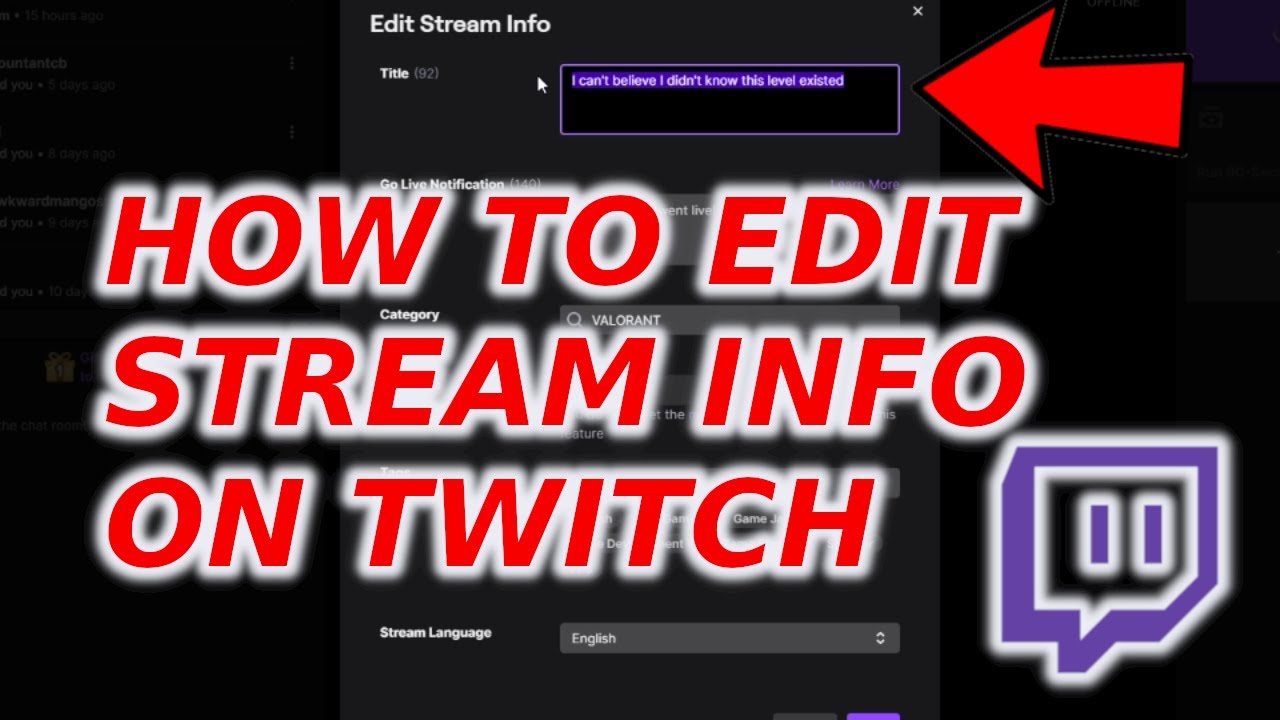
- Open your Creator Dashboard → Stream Manager.
- Click Edit Stream Info (Quick Actions panel).
- Update your Title, Category, Tags, and Language. Save.
Twitch documents this flow in Stream Manager and related help pages (you can also set tags and labels here). :contentReference[oaicite:0]{index=0}
Change Title on Mobile (Twitch App)
- In the Twitch app, tap the + (Go Live) or open your stream controls.
- Tap the ⋮ (three dots) → Edit Stream Info.
- Edit your Title, category, and other info. Save.
Twitch’s mobile IRL guide shows where to edit stream info inside the app before/while going live. :contentReference[oaicite:1]{index=1}
Can Mods Change the Title?
Yes—if you grant proper roles/permissions. The safest method is to have a trusted mod open the Stream Manager quick action to Edit Stream Info during the broadcast. (Some channels also use bot commands, but the official, role-based dashboard route is the most reliable.) :contentReference[oaicite:2]{index=2}
Titles, Tags & Content Labels: Best Practices
Use accurate, value-forward titles
Front-load the payoff (e.g., “Solo to Diamond: Live Coaching” or “Hardcore Boss Rush—No Deaths”). Avoid clickbait; clarity increases CTR and watch time.
Pair with relevant tags
Add up to 10 tags that describe your content and/or you as a creator from Edit Stream Info. Accurate tags help discovery; don’t mislead. :contentReference[oaicite:3]{index=3}
Apply Content Classification Labels when needed
If your stream includes mature themes or specific content types, set the appropriate labels in Edit Stream Info to stay compliant and maintain trust. :contentReference[oaicite:4]{index=4}
Go Live Notification: Messaging Tips
Alongside your title, craft a crisp Go Live notification that matches your session’s value. You set this in Stream Manager → Edit Stream Info. Keep it short, descriptive, and honest (e.g., “Ranked Grind to Diamond—Live Coaching & VOD Review”). :contentReference[oaicite:5]{index=5}
Comparison Table: Desktop vs Mobile vs Mod
| Method | Where | Pros | Watch-outs | Best For |
|---|---|---|---|---|
| Desktop (Creator Dashboard) | Stream Manager → Edit Stream Info | Fast, complete control (title, tags, labels, category) | Remember to save; double-check category | Most broadcasts; solo creators |
| Mobile (App) | ⋮ menu → Edit Stream Info | On-the-go edits, IRL flexibility | UI varies; fewer advanced options | IRL/mobile streams |
| Moderator Assist | Mod uses Stream Manager | Streamer stays focused; quick corrections | Requires trusted roles and comms | Busy shows, collabs, events |
Troubleshooting: Common Title Issues
- Title didn’t update? Refresh your channel page and check Stream Manager; ensure you clicked Save. If using multiple tools (OBS docks, third-party panels), Twitch’s dashboard takes precedence.
- Wrong category or tags? Open Edit Stream Info and correct them; you can update tags and labels during the stream. :contentReference[oaicite:6]{index=6}
- Go Live text mismatch? Re-open Edit Stream Info and align the title + notification message. Twitch documents Go Live message editing under Stream Manager. :contentReference[oaicite:7]{index=7}
💡 Pro Tip
🛒 Grow Safely with BotViewer
If you want a gentle, natural-looking lift in visibility—new time slot, rebrand, or event—use tools with no risk, smart usage and 24/7 support. Keep it realistic and focused on testing content, not inflating numbers.
- 🛒 Check out BotViewer’s Twitch Monthly Viewers to grow safely 🚀
FAQs
1) Where is the title field on desktop?
Go to Creator Dashboard → Stream Manager → Edit Stream Info; update Title, then save. :contentReference[oaicite:8]{index=8}
2) Can I change the title from the Twitch mobile app?
Yes. Tap the ⋮ menu while setting up/streaming and select Edit Stream Info to edit your title and other info. :contentReference[oaicite:9]{index=9}
3) Do tags help with discovery?
They help viewers find relevant streams. Add up to 10 accurate tags from Edit Stream Info—don’t mislabel. :contentReference[oaicite:10]{index=10}
4) Should I use Content Classification Labels?
Yes, when applicable. Set labels (e.g., mature themes) inside Edit Stream Info so viewers control how such content appears. :contentReference[oaicite:11]{index=11}
5) Where do I set the Go Live notification text?
In Stream Manager → Edit Stream Info. Keep it short and aligned with your title. :contentReference[oaicite:12]{index=12}
6) Any deeper setup guides?
Yes—see our internal starter: How to Stream on Twitch (Guide) for scenes, bitrate, and overlays.
Final Word
Now you know how to change your Twitch broadcast title across desktop and mobile, coordinate with mods, and align titles with tags and labels. Keep messaging honest and specific. When you’re ready for a safe boost in visibility, choose tools that look natural and are backed by 24/7 support. 🛒 Explore BotViewer’s Twitch Monthly Viewers to grow safely 🚀